


 Ban & Monetization Policy
 MyLiveRoom Rewards Program Rules & Eligibility
How to Recover Files After Windows Update Crash Using CMD
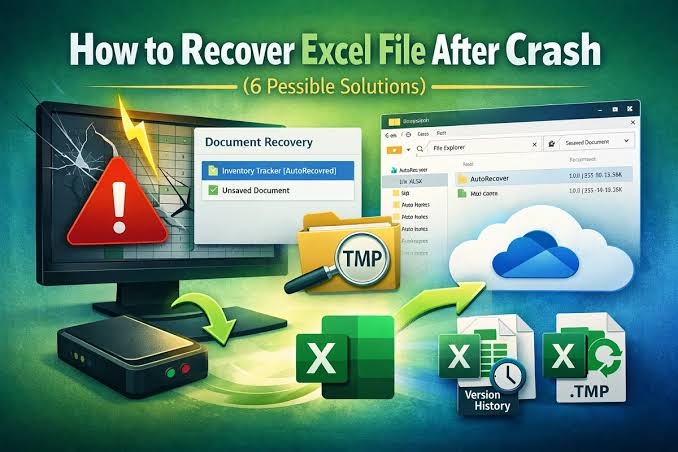
Windows updates are designed to improve system performance, security, and stability. However, sometimes an update can fail or cause a system crash, leaving users worried about missing documents, photos, videos, and other important files. If you have experienced this issue, don't panic. There are several methods available to Recover Files After Windows Update Crash, and one of the most effective approaches involves using the Command Prompt (CMD).
CMD is a built-in Windows utility that allows users to perform advanced troubleshooting and file recovery operations without installing additional software. This guide explains how to use CMD and other helpful techniques to restore lost data after a Windows update crash.
Understanding Why Files Disappear After a Windows Update Crash
Before attempting recovery, it is important to understand why files may appear missing after an update failure.
Common reasons include:
- Corrupted system files
- Interrupted update installation
- Temporary user profile creation
- File system errors
- Hard drive corruption
- Accidental deletion during troubleshooting
In many cases, files are not permanently deleted. They may simply become inaccessible due to system errors created during the update process.
Preparing Your System Before Recovery
Before you begin any recovery procedure, follow these precautions:
- Avoid saving new files to the affected drive.
- Do not install unnecessary software.
- Restart your computer once to verify that files are actually missing.
- Check whether you are logged into the correct user account.
These simple steps can improve the chances of successfully recovering your lost data.
Using CMD to Recover Lost Files
Command Prompt provides several useful commands that can help repair file system issues and locate missing files.
Method 1: Run CHKDSK Command
The CHKDSK utility scans and repairs disk errors that may prevent files from appearing correctly.
Follow these steps:
- Press Windows + R.
- Type cmd.
- Right-click Command Prompt and select Run as Administrator.
- Enter the following command:
chkdsk C: /f /rReplace C: with the drive letter where your files were stored.
- Press Enter.
- Allow Windows to scan and repair the drive.
The CHKDSK process can fix corrupted file system structures and help Recover Files After Windows Update Crash by restoring access to hidden or damaged files.
Method 2: Use ATTRIB Command
Sometimes files become hidden after a system crash. The ATTRIB command can reveal them.
Open Command Prompt as Administrator and type:
attrib -h -r -s /s /d C:\*.*Then press Enter.
This command removes:
- Hidden attributes
- Read-only attributes
- System file attributes
After the process completes, check whether your files have reappeared.
Repair Corrupted System Files Using CMD
System file corruption is another common cause of missing data after an update crash.
Run System File Checker (SFC)
Open Command Prompt as Administrator and enter:
sfc /scannowThis command scans Windows system files and automatically replaces damaged versions.
The scan may take several minutes. Once completed, restart your computer and verify whether your files have become accessible again.
Run DISM Tool
If SFC cannot fix all issues, use the Deployment Image Servicing and Management tool.
Run the following command:
DISM /Online /Cleanup-Image /RestoreHealthDISM downloads healthy Windows components and repairs corrupted system files.
Using both SFC and DISM can significantly improve your chances to Recover Files After Windows Update Crash caused by operating system corruption.
Locate Missing Files Through CMD
Sometimes files still exist on the drive but have been moved to a different location.
Use this command:
dir C:\filename.ext /sReplace:
- filename with your file name
- ext with the file extension
For example:
dir C:\report.docx /sWindows will search the entire drive and display the file's location if it exists.
Search for Recently Modified Files
To identify recently recovered or relocated files, use:
dir C:\ /s /odThis command lists files according to modification dates, helping you locate data that may have been moved during the update process.
Restore Files from Windows Previous Versions
Windows automatically creates restore points and shadow copies when System Protection is enabled.
To access previous versions:
- Navigate to the folder where files were stored.
- Right-click the folder.
- Select Properties.
- Open the Previous Versions tab.
- Choose an available version.
- Click Restore.
This method can often help users Recover Files After Windows Update Crash without using third-party recovery tools.
Use Windows File Recovery Tool
Microsoft offers a free utility called Windows File Recovery.
To use it:
- Install Windows File Recovery from Microsoft Store.
- Open Command Prompt as Administrator.
- Run a command similar to:
winfr C: D: /regularWhere:
- C: is the source drive
- D: is the recovery destination
The tool scans for deleted or inaccessible files and attempts to restore them safely.
Check the Windows.old Folder
After major updates, Windows may create a Windows.old folder containing files from the previous installation.
To check:
- Open File Explorer.
- Navigate to:
C:\Windows.old- Browse through Users and Documents folders.
Many users successfully Recover Files After Windows Update Crash by copying data from this backup folder.
Prevent Future Data Loss During Windows Updates
While recovery methods can be effective, prevention is always better.
Create Regular Backups
Use:
- File History
- OneDrive
- External hard drives
- Cloud storage solutions
Enable System Restore
System Restore allows you to revert Windows to an earlier state if updates fail.
Maintain Drive Health
Regularly run:
chkdskand
sfc /scannowto identify and fix issues before they become serious.
Keep Recovery Media Ready
A bootable USB recovery drive can be invaluable when Windows fails to start after an update.
When CMD Recovery Is Not Enough
In some situations, severe corruption or drive damage may prevent CMD from restoring files. If this occurs, professional data recovery software or specialized recovery services may be required.
However, many update-related file loss cases can be resolved using the built-in Windows commands discussed above. Acting quickly and avoiding unnecessary changes to the affected drive can greatly improve recovery success rates.
Conclusion
Experiencing file loss after a failed Windows update can be frustrating, but recovery is often possible. By using Command Prompt tools such as CHKDSK, ATTRIB, SFC, and DISM, users can diagnose and repair many of the issues responsible for missing data. Additional methods such as Previous Versions, Windows File Recovery, and the Windows.old folder provide further opportunities to Recover Files After Windows Update Crash successfully.
The key is to act promptly, avoid overwriting data, and follow the recovery procedures carefully. With the right approach, you can restore valuable files and get your system back to normal operation.
 Italiano
 English
 Arabic
 French
 Spanish
 Portuguese
 Deutsch
 Turkish
 Dutch
Dutch
 Russian
 Romaian
 Portuguese (Brazil)
 Greek
Greek