


 Ban & Monetization Policy
 MyLiveRoom Rewards Program Rules & Eligibility
This Company File Needs to Be Updated QuickBooks: Complete Guide
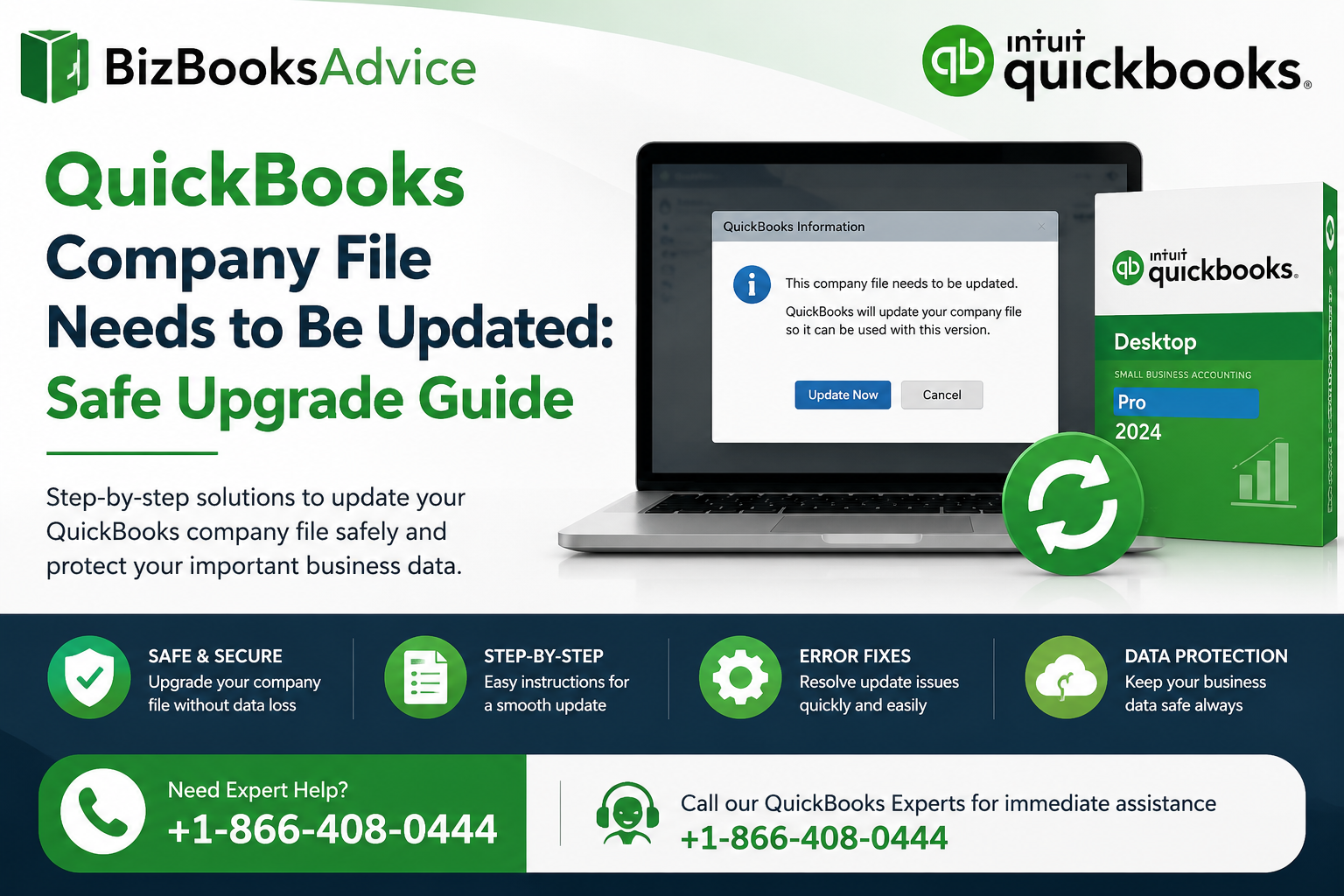
You open QuickBooks after installing a new version, and instead of going straight into your books, you see a message that company file needs to be updated quickbooks. That prompt can feel unsettling especially when all your business history lives inside that file. Updating is necessary when you change QuickBooks versions, but doing it without preparation can risk data, disrupt workflows, or leave older machines unable to open the file.
This guide walks you through what that message really means, how to get ready before you click “Update,” and how to protect your data so the transition from one QuickBooks version to another is smooth instead of stressful.
Why QuickBooks Requires a Company File Update
When you install a newer major version or year of QuickBooks, the underlying database format often changes. Your existing company file was created using an older structure, so QuickBooks needs to convert it to work correctly with the new release.
What the Update Actually Does
-
Adjusts the internal database format to match the newer QuickBooks version.
-
Adds support for new features, fields, and calculations.
-
Ensures reports and transactions are interpreted correctly by the upgraded software.
Once the file is updated, it usually cannot be opened in older versions of QuickBooks. That’s why planning ahead—especially if other computers still use a previous version—is essential.
Typical Situations That Trigger the Message
You’ll usually see the update prompt when:
-
You open an existing company file after installing a newer QuickBooks year or edition.
-
You move a file from a machine with an older version to one with a newer version.
-
You restore a backup created in a previous version into the new software.
In each case, QuickBooks is telling you that it needs to convert the file so the new program can understand it properly.
Step 1: Prepare Before Updating the Company File
Before accepting any update, take a few simple precautions to protect your data and your options.
Make a Full Backup First
-
Create a fresh backup of your company file using the older version before you open it in the new one.
-
Store that backup in a safe location (preferably on a different drive or device).
-
Label it clearly so you know it’s from the pre‑update version.
This backup becomes your safety net. If anything goes wrong during the update, or if you need to open the file again in the older QuickBooks version, you still have a clean copy.
Confirm Which Machines Use Which Version
-
Identify all computers that open this company file.
-
Note which QuickBooks version is installed on each machine.
-
Decide whether all machines will move to the newer version or some will stay on the old one.
Because an updated file won’t open in older versions, it’s important to avoid leaving part of your team unable to access the data after the update.
Step 2: Check System Readiness for the New Version
Updating the company file assumes that the new QuickBooks version is properly installed and supported by your system.
Verify Installation and Environment
-
Make sure the new QuickBooks release is fully installed and activated.
-
Confirm that your Windows version meets the requirements for the new QuickBooks edition.
-
Close other heavy programs while you update, to reduce the chance of slowdown or interference.
A clean, stable environment lowers the risk of errors while the file is being converted.
Step 3: Run the File Update Carefully
When you’re ready, open QuickBooks and follow the prompts to update the file.
During the Update
-
Read each on‑screen message carefully before clicking Next or OK.
-
Allow the process to complete without interrupting QuickBooks or shutting down Windows.
-
Once finished, check that key areas—customers, vendors, accounts, and balances—look correct.
If the update completes but something seems off (missing entries, odd balances, or unexpected behavior), it may be wise to pause and get a second opinion before continuing heavy work. In that situation, you can describe what you’re seeing to a knowledgeable professional at +1-866-408-0444 so you don’t accidentally make a problem worse.
Read Also - QuickBooks Migration Tool
Step 4: Test Daily Workflows After the Update
Once the file is updated, treat the next few sessions as a test phase rather than “business as usual.”
Check Core Activities
-
Create test invoices and bills to ensure transactions behave as expected.
-
Run common reports (Profit & Loss, Balance Sheet, Aging) and compare them with prior periods.
-
Confirm that integrated features—like merchant services, payroll, or connected apps—still align with your workflows.
If your business uses multi‑user access or shared company files, make sure all relevant users can open the updated file from their machines without errors.
Step 5: Consider Hosting and Access Settings
Updating a company file in a multi‑user or network environment involves more than just the file conversion. Hosting and access configuration can also affect how the updated file behaves.
FAQs: QuickBooks Company File Needs to Be Updated
Why does QuickBooks say my company file needs to be updated?
The message appears when you open a file created in an older QuickBooks version using a newer release. The software needs to convert the file’s internal structure so it can use new features and maintain data integrity.
Can I still open the file in the old version after updating?
Generally, no. Once the company file is updated to a newer major version, it usually won’t open in older versions. That’s why creating a backup in the old version before updating is essential if you think you might need backward access.
What happens if the update fails in the middle?
If the update stops partway through, you may end up with a file that doesn’t open correctly. In that case, keep your pre‑update backup safe, avoid further attempts on the damaged file, and consider using that backup as the starting point for a new, carefully guided update.
How can I reduce the risk of problems during a company file update?
Make a verified backup first, ensure your system meets requirements, close other heavy programs, and avoid network instability while updating. Testing key reports and transactions immediately after the update helps catch issues early.
Do I need to update all company files when I upgrade QuickBooks?
Each company file must be updated the first time you open it in the new version. You can choose when to update each file, but once you do, that file is tied to the newer version. Planning which files to move and when helps keep your team’s access consistent.
Conclusion
Seeing the prompt that company file needs to be updated quickbooks is a normal part of moving to a newer QuickBooks version—but it’s a step that deserves careful handling. By backing up first, checking versions across your machines, confirming system readiness, running the update patiently, and testing your everyday workflows afterward, you can make the transition smoothly while keeping your data safe.
If you’d like clear, plain‑language explanations and walkthroughs on topics like version upgrades, file maintenance, backups, and environment choices, BizBooksAdvice offers practical articles that focus on real‑world QuickBooks usage instead of jargon.
 Turkish
 English
 Arabic
 French
 Spanish
 Portuguese
 Deutsch
 Dutch
Dutch
 Italiano
 Russian
 Romaian
 Portuguese (Brazil)
 Greek
Greek