


 Ban & Monetization Policy
 MyLiveRoom Rewards Program Rules & Eligibility
How to Backup IMAP Emails to PST Without Facing Errors
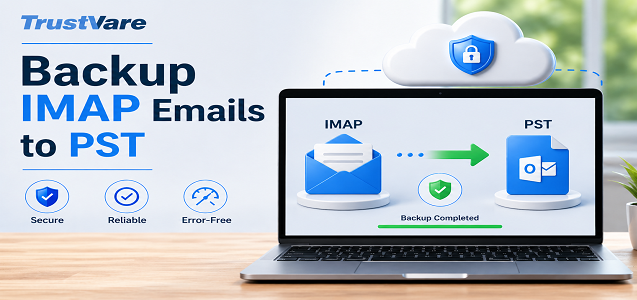
Email is more than just communication, it’s a record of your work, conversations, and important data. But what happens if your email service collapses, is hacked, or limits access? That’s where backup comes in. If your email account is IMAP-based, backing up your emails to a PST file can save you a lot of hassle later on.
This post is for you to learn how to backup IMAP emails to PST without error even if you are a newbie. Let's keep it easy and frustration-free.
What Are IMAP and PST? (A Brief Overview)
First, let’s get the essentials out of the way.
IMAP: Email stays on the mail server, and you can access it from many devices.
PST: A file type used by Microsoft Outlook to locally store emails, attachments, and more.
Backing up IMAP emails to PST is simply downloading your server-based emails to a local Outlook file.
Benefits of Backup IMAP Emails to PST
Here are some common reasons why individuals choose a backup PST:
- Data security: Protect email from accidental deletion or server crash
- Offline access: read emails without internet access
- Account migration: Email transfer across accounts or systems
- Storage management: Reclaim Server Space
- Legal or regulatory requirements: Save records safely
Common Mistakes While Backup IMAP Emails to PST
Before we get into remedies, it’s good to know what can go wrong:
- Server and Outlook sync difficulties
- Large mailbox size causes export failure.
- Network failure
- Corrupted Outlook PST files or profiles
- IMAP settings not configured correctly
The good news? All of these can be avoided by taking the appropriate attitude.
Method 1: Manual approach to Backup IMAP Emails to PST
This is the most popular technique utilizing Microsoft Outlook.
Step-by-Step Guide
Step 1: Set Up Your IMAP Account in Outlook
- Launch Outlook.
- file add account
- Enter your IMAP e-mail credentials
- Let Outlook Synchronize All Your Emails
- Once all folders have finished syncing, you can continue.
Step 2: Export Emails in PST
- Click File > Open & Export > Import Export
- Choose Export to a file
- Select Outlook Data File (PST)
- Choose your IMAP account or respective folders
- Select a location to save the PST file
- Click Finish
Disadvantages of the Manual Method
The free mode is manual, but has certain downsides:
- The system does not perform well with large email storage.
- The backup process becomes incomplete when synchronization fails to execute.
- The system provides limited advanced search capabilities.
- The process of obtaining multiple accounts requires excessive time.
- Novices face increased chances of making mistakes during their work.
Method 2: Use Professional IMAP to PST Tool
When you are more into a live experience, using a tool especially for backup IMAP emails to PST might be a good idea.
Advantages of Using a Tool
- Automatic backup process
- Bulk email migration support
- Handles large mailboxes with ease
- More advanced filters (date, folder, etc.)
- Reduces the probability of data loss/corruption
- Easy interface
- Support multiple file formats
- Offer a free demo version
- Backup emails with attachments
How It Works (Process Flow)
- Steps to download & install IMAP Backup software on your PC
- Start the software
- Email login information for IMAP account
- Choose folders to backup
- Select the output format (PST, PDF, MBOX, EML, etc.)
- Choose destination path (where to save backup)
- Click “Backup Now”
Best Practices to Avoid Errors
Whether you go with a manual or automated backup, here are some recommendations to help you make it go smoothly:
Check for a Stable Internet Connection.
IMAP is server-side sync. If you are interrupted, the backup can be incomplete.
Export after Synchronizing All Mails
Ensure that you have downloaded all emails locally in Outlook.
Review of Mailbox Sizes
Large mailboxes might cause crashes. If you must, break data.
Temporarily disable your antivirus
Antivirus software can sometimes interfere with export processes.
Keep Outlook updated
The current version contains bug and compatibility fixes.
Check PST File Post Backup
Always open the PST file so that you may see your emails.
Professional Tool vs. Manual: Fast comparison
Feature Manual Method Professional Tool
- Cost Free Paid
- Ease of Use Moderate Easy
- Speed Slow Fast
- Error Risk Higher Lower
- Bulk Backup Limited Supported
- Advanced Filters No Yes
When to Select a Tool?
Consider utilizing a professional tool if:
- You've got thousands of emails
- You need selective backup.
- You aren't tech-savvy
- You never want to make mistakes.
- You are backing up several accounts.
Final thoughts
The process of backup IMAP emails to PST files requires technical skills that exceed basic understanding. The important aspect of the two methods, manual and professional needs operators to take proper actions while they should avoid making common errors. The manual way works just fine if you’ve got a little inbox to deal with and a bit of technical understanding. The best choice for someone who needs fast service without any problems is to consider purchasing a specialized tool.
FAQ
How to Backup IMAP Emails to PST without Outlook?
The manual solution requires Microsoft Outlook because it uses PST as its main file format. The process allows users to convert IMAP emails into PST format through third-party applications which work without needing Outlook installation.
Why are some of my IMAP emails missing after export?
Outlook fails to sync with the mail server, which leads to this problem. You need to wait until all folder contents and all email messages become visible in Outlook before starting the export process.
How large can a PST file be?
The file size limits for Outlook files depend on the version of Outlook you are currently using.
- The maximum file size for Outlook 2007 and earlier versions stands at 20 GB.
- Outlook 2010 and later versions support file sizes that reach 50 GB.
You should divide your backup process into multiple PST files when your mailbox contains a significant amount of data.
Can PST files be opened without an Internet connection?
Microsoft Outlook allows you to access PST files because they store data on your computer, which makes them available for offline use. The ability to backup IMAP email through PST conversion stands as one of the primary advantages of the process.
Is it safe to use third-party tools for IMAP to PST backup?
The method remains secure when you select a well-respected tool that trustworthy users have approved. The features of your system should include secure user authentication methods and data protection systems together with positive customer feedback to ensure protection for your email data.
 Deutsch
 English
 Arabic
 French
 Spanish
 Portuguese
 Turkish
 Dutch
Dutch
 Italiano
 Russian
 Romaian
 Portuguese (Brazil)
 Greek
Greek